
Club Email Account Setup
Camberwell Hockey Club Email Setup Guide
This guide will help you set up your **@camberwellhockeyclub.com.au** email on your devices.
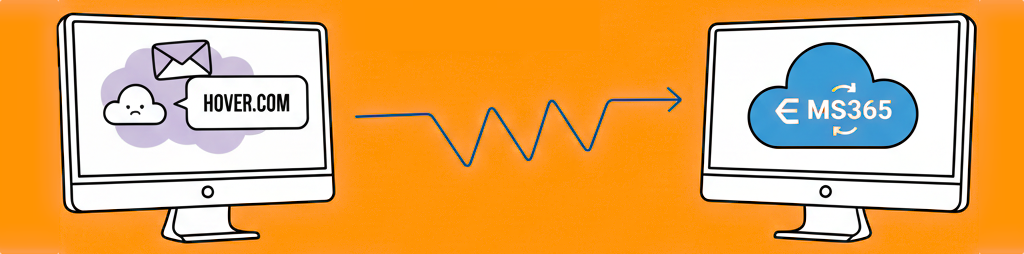
The club is changing our email provider to Microsoft 365. This will allow you to easily integrate with Microsoft services including Contacts, Calendars, Share Point and Team video conferencing. You will need to update your email client to continue accessing your club account using the details provded below. Please note the information carefully.
Important Dates & Actions
1. The email service will be cutover to Microsoft on Saturday 14th February between 9am on noon.
2. Email services may be unavailable for a short period during the cutover.
3. When the cutover is complete new messages will only be delivered to the MS Exchange server.
4. Message history will be migrated into the new MS mail account.
Recommended Actions
1. Please continue to use your existing account to send and recieve messages until the cutover is complete.
2. Please setup the new account now. You will then be ready for this account to receive the migrated and new messages when the cutover is complete and from then can use it to send outbound messages.
3. You can use any mail client however we recommend Microsoft's Outlook client for the best experience integrating with the other MS services such as Calendars and Teams calls.
Please note we cannot use your existing account password with the new MS account. Instead we have provided new temporary passwords which you can change as you create your account. The temporary password will be distributed outside of email. If you're unsure of your password please text Steve on 0414514954 noting which account you're setting up.
Your Login Details
Your email address will not change. But you will need to update the server and password.
Email Address: Your full email (e.g., info@camberwellhockeyclub.com.au)
Password: Provided separately by your administrator. This will be a temporary password you can change later.
Server Type: Microsoft 365 (Exchange)
Option 1: Microsoft Outlook App (Recommended)
The Outlook app is the easiest way to access your email. It's free and works great with Microsoft 365.
iPhone / iPad
1. Open the **App Store**
2. Search for **"Microsoft Outlook"** and install it
3. Open the Outlook app
4. Tap **"Add Account"**
5. Enter your email address (e.g., info@camberwellhockeyclub.com.au)
6. Tap **"Sign In"**
7. Enter your password when prompted
8. You're done!
Android Phone / Tablet
1. Open the **Google Play Store**
2. Search for **"Microsoft Outlook"** and install it
3. Open the Outlook app
4. Tap **"Get Started"**
5. Enter your email address
6. Tap **"Sign In"**
7. Enter your password when prompted
8. You're done!
Option 2: Built-in Mail App
If you prefer to use your phone's built-in mail app, follow these steps.
iPhone / iPad (Apple Mail)
1. Open **Settings** on your iPhone/iPad
2. Scroll down and tap **Apps**
3. Tap **Mail**
4. Tap **Mail Accounts**
5. Tap **Add Account**
6. Select **Microsoft Exchange**
7. Enter your email address and tap **Next**
8. Tap **Sign In**
9. Enter your password
10. Choose what to sync (we recommend: Mail, Contacts, Calendar)
11. Tap **Save**
Android (Gmail App)
1. Open the **Gmail** app
2. Tap your profile picture in the top right corner
3. Tap **Add another account**
4. Select **Exchange** or **Office 365**
5. Enter your email address
6. Enter your password
7. Follow the remaining prompts
8. You're done!
Option 3: Computer Email Programs
Mac (Apple Mail)
1. Open the **Mail** app
2. In the menu bar, click **Mail** → **Settings** (or **Preferences**)
3. Click the **Accounts** tab
4. Click the **+** button to add an account
5. Select **Microsoft Exchange**
6. Enter your email address and click **Sign In**
7. Enter your password when prompted
8. Choose what to sync and click **Done**
Windows (Outlook Desktop)
1. Open **Outlook**
2. Click **File** → **Add Account**
3. Enter your email address
4. Click **Connect**
5. Enter your password
6. Click **Done**
Mac (Outlook Desktop)
1. Open **Outlook**
2. In the menu bar, click **Outlook** → **Settings**
3. Click **Accounts** → **+** (Add Account)|
4. Enter your email address
5. Click **Continue** and enter your password
6. You're done!
Webmail Access
You can also access your email from any web browser:
1. Go to **https://outlook.office.com**
2. Enter your email address
3. Enter your password
4. Bookmark this page for easy access!
Frequently Asked Questions
It says my password is wrong
- Make sure you're using the new password provided by your administrator
- Passwords are case-sensitive (check caps lock)
- If you've forgotten your password, contact your administrator
I'm not receiving emails
- Wait a few minutes - new emails can take a moment to arrive
- Check your **Junk/Spam** folder
- Make sure you have an internet connection
- Try closing and reopening your email app
Where are my old emails?
Your historical emails have been migrated to your new mailbox. Check your Inbox - they should all be there. If something is missing, contact your administrator.
My email looks different
The Microsoft 365 interface may look different from your old Hover webmail. All your emails are still there, just presented differently.
Can I use multiple devices?
Yes! You can set up your email on as many devices as you need. Just follow the setup steps on each device.
What about my contacts and calendar?
Hover did not offer contacts and calendar support hoever Microsoft 365 does includes Contacts and Calendar features you can use going forward.